Magify MCP: Let Your AI Assistant Integrate the Magify SDK
October 15, 2026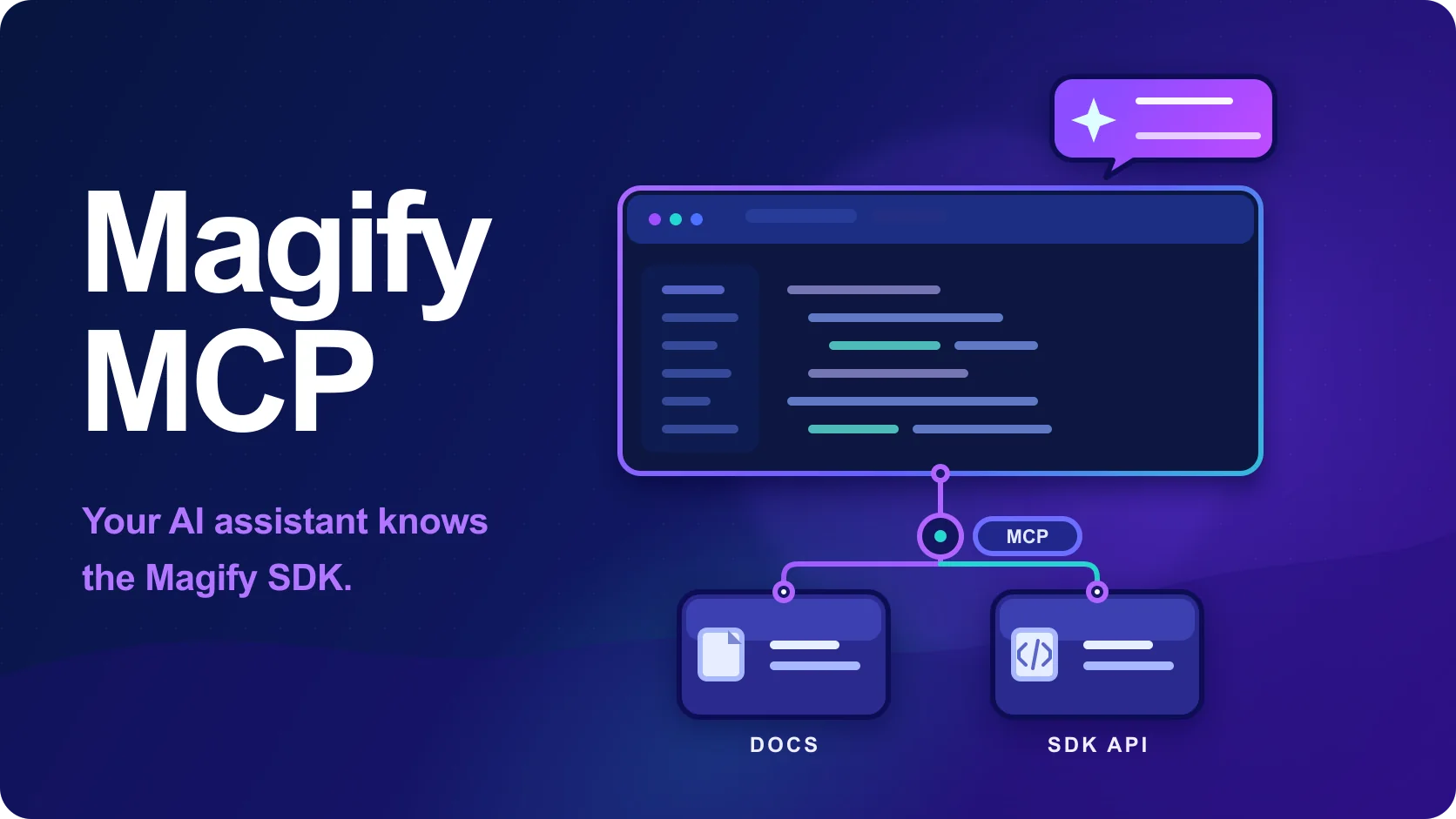
Connect Claude Code, Codex, Cursor or VS Code to the Magify docs and public SDK API, so your AI assistant checks real method signatures before it writes code.
AI assistants are confident about SDKs they have never seen
Most SDK integrations now start with a prompt. A developer opens their editor, asks the assistant to "add Magify with AppLovin MAX and Adjust", and gets back code that looks right.
The trouble is where that code comes from. A language model knows an SDK only from its training data, which lags behind releases and often covers a vendor SDK thinly. The assistant fills the gaps with plausible guesses: a method that was renamed two releases ago, a configuration flag that never existed, an initialization order borrowed from a different SDK. The code looks right but does not compile in your project, or, worse, it compiles and events silently never arrive.
Better prompts do not fix this. The assistant needs access to the source of truth: the current documentation and the actual public API of the release you are installing.
What the server does
The Model Context Protocol (MCP) is an open standard that lets AI assistants call external tools. Many AI coding tools support it, so a single server works across all of them.
The Magify Integration MCP server (Magify MCP for short) gives your assistant two things:
- The Magify documentation: integration guides for Android, iOS, Flutter and Unity, configuration options, purchases, attribution, campaigns and the rest of the help center.
- The public SDK API: class, method and property signatures taken from the published release archives of each SDK, the same packages you download and install.
The server is public and read-only, and needs no sign-in or API key. It does not see your project, your code or your Magify data. It returns documentation excerpts and signatures, and your own assistant composes the answer.
The index is rebuilt every time the help center is deployed. When the documentation changes, or a new SDK release is listed in the help center, the assistant sees it after the next deploy instead of waiting for the next model training run.
Four tools, picked by the assistant
Under the hood, the server exposes four tools. You never call them yourself: the assistant chooses them based on your question.
get_integration_guide: the integration guide for a platform in reading order, or the pages for one topic within it, such as purchases or AppsFlyer.search_docs: documentation excerpts that match a question, with links to the source pages.get_page: the full content of one documentation page.get_sdk_api: public SDK signatures from the latest release, or the details of one class or method. If a name does not exist, the tool says so and suggests the closest real symbols.
That last behavior matters most. When the assistant is about to use a method, it can check that the method exists in the release you are installing, with the parameters it expects. A guess becomes a lookup.
What it looks like in practice
Take a common request from a Unity team:
Integrate Magify into my Unity project.
We use AppLovin MAX for ads and Adjust as our MMP.
With the server connected, a capable assistant works through it roughly like this:
- It calls
get_integration_guidefor Unity with the topic "AppLovin MAX Adjust" and gets the pages that match the topic, together with their neighbors in reading order. - If a page comes back shortened, it reads it in full with
get_page. The AppLovin MAX page explains how to connect the mediator, including theMAX_ADS_MEDIATORdefine for your target platforms. - Before writing the call, it checks the API with
get_sdk_apiand confirms thatMagifyService.UseEmbeddedMaxMediatorandInitializeEmbeddedMaxMediatorexist in the current Unity SDK. - It writes code that follows the documentation, not its memory:
MagifyService.Initialize(_magifySettings, _magifyServiceArgs) .UseEmbeddedMaxMediator() .InitializeEmbeddedMaxMediator(); - It repeats the lookup for the Adjust page, checks the Adjust-related API the same way, and links you to the pages it used, so you can check its work.
The same flow works for questions you would otherwise search the help center for: "How do I initialize the SDK in Application.onCreate on Android?", "Where do I handle ATT consent on iOS?", "How do I read a remote config value in Flutter?". Each answer is grounded in a specific page you can open.
Connect your assistant
The server URL is https://help.magify.com/mcp. It is an endpoint for MCP clients, not a page to open in the browser.
Claude Code, one command in your terminal:
claude mcp add --transport http magify-help https://help.magify.com/mcp
Codex (the CLI, the IDE extension and the ChatGPT desktop app share one configuration):
codex mcp add magify-help --url https://help.magify.com/mcp
Cursor, in ~/.cursor/mcp.json or .cursor/mcp.json in your project:
{
  "mcpServers": {
    "magify-help": {
      "url": "https://help.magify.com/mcp"
    }
  }
}
The server also works with Claude Desktop, VS Code with GitHub Copilot, the Unity AI Assistant, Gemini CLI, Windsurf, JetBrains IDEs, Zed and any other client that supports remote HTTP MCP servers.
Once connected, ask in plain language and name your platform, so the assistant can scope the lookup:
- How do I initialize the Magify SDK on iOS?
- How do I connect AppsFlyer in Unity?
- What is the signature of the purchase method on Android?
What it is not
The server gives your assistant better sources, not better judgment. It returns documentation and signatures; the model you connect still writes the reply and the code. Review generated code the way you would review a pull request from a new teammate, and test the integration on a device before you ship.
The server also does not replace the help center. Every answer it supports links back to the page it came from, and the documentation stays the reference for anything the assistant summarizes.
Get started
Connect https://help.magify.com/mcp to the assistant you already use, and your next Magify integration starts from the current documentation and the real SDK API instead of a guess. Setup for every supported client is in the Integration MCP Server guide.
What to read next

Main Dashboard: One Analytics Home for Every Role

Introducing Refund Saver: Automated App Store Refund Management in Magify